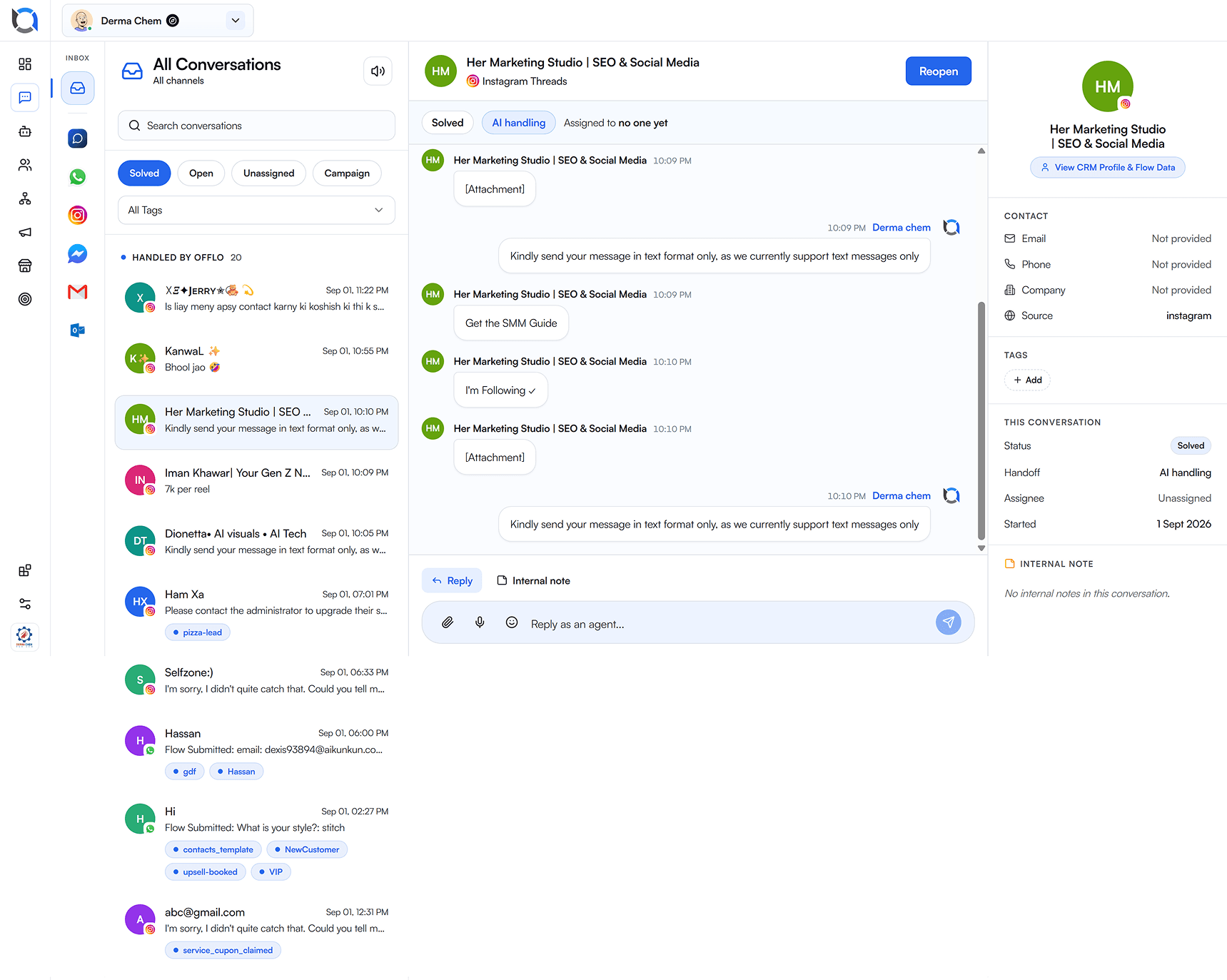
The AI agent hands off
The customer asks to talk to a person, or your AI agent escalates a question it can't resolve on its own.
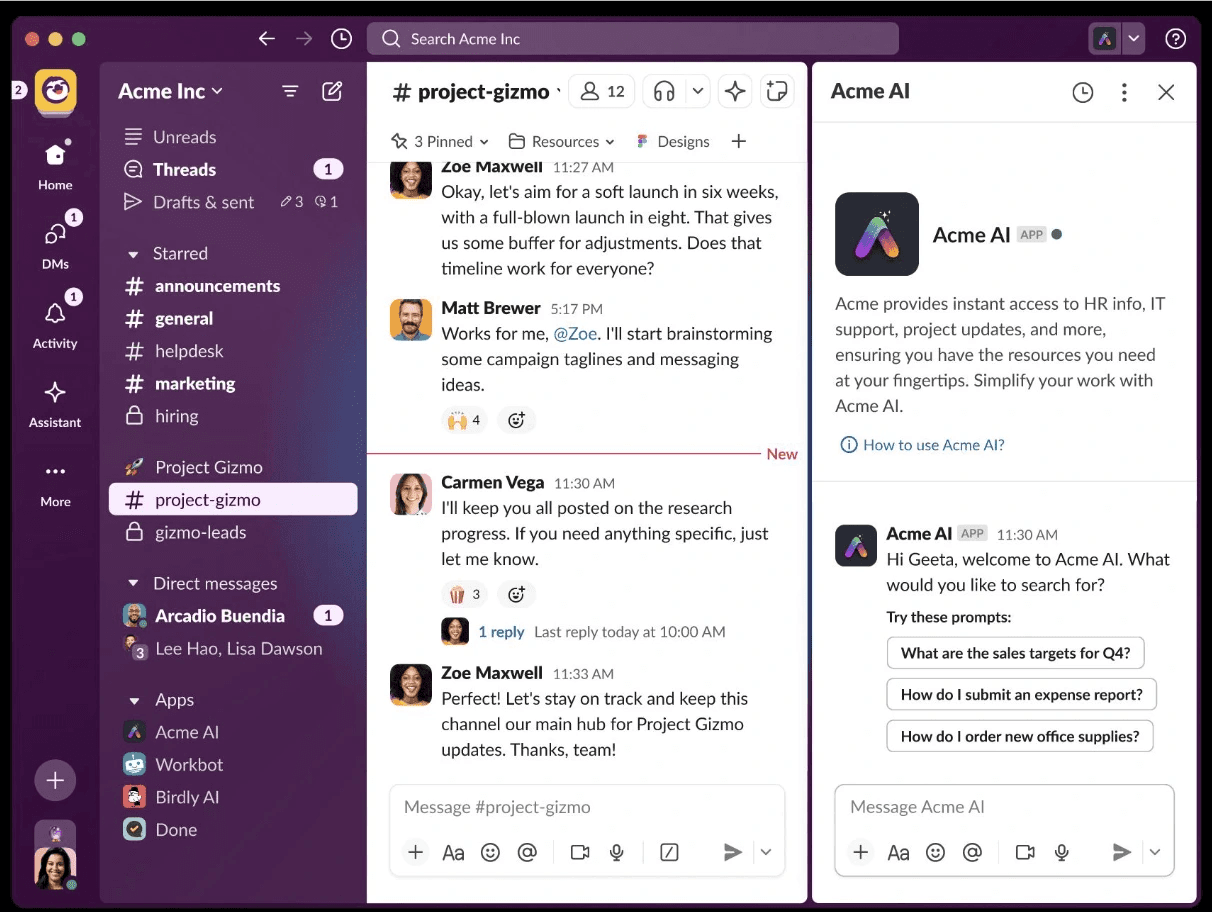
Offlo's AI agent answers your customers on your website, WhatsApp, Instagram, Messenger and email. When a conversation needs a person — the customer asks for one, or the AI hands off — Offlo posts an alert to the Slack channel your team already watches, with the conversation so far in a thread.
Installing requires an Offlo account. The button signs you in (or lets you create an account) and takes you straight to Slack setup — see the steps below.
How it works in Slack
Offlo for Slack is a notification app. It posts to a single channel that you pick while installing, and nothing else.
The AI agent hands off, a Flow reaches an Assign to agent step, or a Shopify check step in a Flow transfers the customer — on any channel Offlo serves. See exactly what triggers an alert below.
The alert shows the reason and who it's assigned to (or that it's waiting in the queue). The recent transcript goes in a thread, so the channel stays easy to scan.
Whoever takes it opens the conversation in the Offlo inbox and replies to the customer on the channel they wrote in.
What triggers a message in Slack
Offlo posts to Slack only when a conversation is handed off to a human. There are three ways that happens:
The customer asks to talk to a person, or your AI agent escalates a question it can't resolve on its own.
Any automation Flow you build in Offlo that includes an Assign to agent step posts an alert when a customer reaches that step.
The Check order status, Check product availability and Check shipping details steps in your Flows post an alert when the customer chooses to talk to your team — and Check order status also transfers automatically when it can't resolve the order.
Installation
Slack is connected from inside Offlo, because each Slack channel is linked to one of your AI agents. Here's how to get there:
Click Add to Slack on this page, or go to https://app.offlo.ai. New to Offlo? Create an account at https://app.offlo.ai/signup and set up your first AI agent.
Add to Slack takes you straight there. Otherwise, open your AI agent, go to Settings and choose Slack (under Channels).
Slack asks you to choose your workspace and the channel for handoff alerts, and to approve the permissions listed below. Click Allow.
You're returned to Offlo, which confirms Slack is connected. Click Test notification to check the alert arrives in your channel.
Configure and use
Everything is configured in Offlo; there are no settings to change inside Slack.
Read the reason in the channel and open the thread to see the conversation so far.
Open the Offlo inbox and find the conversation — it's assigned to the named teammate, or waiting in the queue.
Claim it if it's unassigned, then reply. The customer receives your reply on the channel they wrote in, and the AI agent stays paused while a person handles it.
Slack is for alerting only: replying in the Slack thread does not send anything to the customer.
Permissions
Offlo requests only the permissions it needs to post alerts to the channel you choose.
| Permission | Why Offlo needs it |
|---|---|
incoming-webhook | Lets you pick the channel for handoff alerts during install, and lets Offlo post to that channel. |
chat:write | Lets the Offlo bot post each alert and reply to it with the conversation transcript in a thread. |
Offlo stores only the Slack connection details it needs to post alerts, never reads your Slack messages, and never uses Slack data to train AI models.
Read our Privacy PolicyEmail support@offlo.ai — no Offlo account or login needed. We reply within 2 business days.
Contact supportUse of Offlo, including the Slack integration, is covered by our Terms & Conditions.
Read our TermsGet started
Connect Slack to your AI agent and get an alert in the channel your team already watches the moment a customer needs a person.